Pursuant to the CSUB Undergraduate Academic Integrity Policy or the CSUB Graduate Academic Integrity Policy, all allegations of cheating and plagiarism should be referred to the Dean of Students Office by completing our Academic Integrity Violation Reporting Form.
Complete the Academic Integrity Violation Reporting Form to report a violation of
the University’s Academic Integrity Policy and the Student Conduct Code. If you believe
that a violation of the CSUB Undergraduate Academic Integrity Policy, CSUB Graduate
Academic Integrity Policy, or the Student Conduct Code has occurred, please complete
the following: The Dean of Students Office will receive the reporting form and will follow procedures
according to CSU Student Conduct Process. Student(s) who receive a conference letter may contact you regarding the academic
integrity incident, if so, we recommend to please refer the student(s) to our office
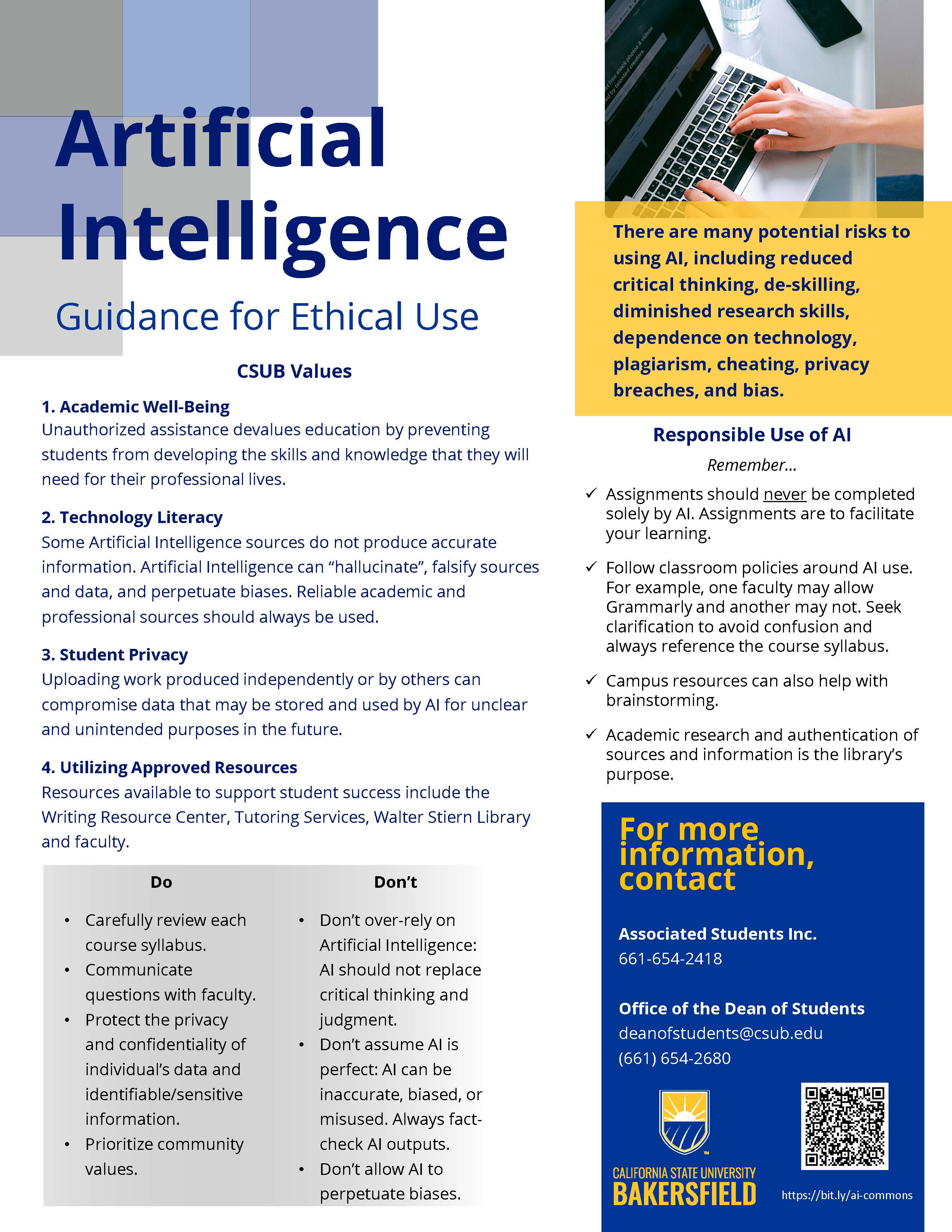
and advise them to attend their conference scheduled with our office. Artificial Intelligence (AI) is information produced by either machines or software
instead of a human being. It can predict, respond, and create using AI powered tools.
In the academic world, innovative resources and tools such as Chat GPT, Google Bard,
Grammarly, Quillbot, Otter.ai, Socratic, Copyscape, etc. are all generative Artificial
Intelligence tools. Although, these resources and tools are helpful they can also be used to gain an unfair
academic advantage and may violate the CSUB Student Conduct Code and the Academic Integrity Policy. Make sure to communicate with each faculty member to understand how you can use
these resources for each course. The resources should never be used to complete an
assignment or help with an exam. They should only be used, if approved, to supplement
your learning. Earning a degree at CSUB means that you worked very hard independently. It does not
mean that you relied on an Artificial Intelligence tool to write papers or respond
to prompts or solve difficult problems. The University expects you to complete and
submit assignments that demonstrate the knowledge and skills you have acquired in
each course and discipline.Academic Integrity Violation Reporting Guidelines
Artificial Intelligence (AI)
Academic Integrity Module 2.0
1. Open Commons
In Global Navigation, click the Commons link.

2. Find Resource

Locate the resource by using the search field [1]. You can sort resources by Most Relevant, Latest, or Most Favorited [2]. You can also filter search by approved content, type of content, grade/level, and share settings [3].
Enter "Academic Integrity Module 2.0" in the search field and the results will show the module by Rebecca Penrose. If not, change the sort resources to Latest and select the following filters to "Modules", "Undergraduate and Graduate", and Shared with "CSU Bakersfield". One result should appear after entering the following filters.
3. Open Resource
To view the resource details and import, click the resource title.
4. View Resource
To import or download the resource, click the Import/Download button.
5. Import Resource
Search for the course(s) into which you would like to import the resource, or select the course from the list. Then, click the Import into Course button.
6. Resource Pending Message
If you try to import a resource that is still pending, the Import into Course button will be inactive, and Commons will display a message notifying you the resource is still processing.

7. View Import Notification
View the import status notification at the top of your screen. Please note that it may take a while to see changes in your course.


If the resource is still being imported, you will see a status notification when you open your course. Click the Import Status link.
8. View Import Status

The Current Jobs menu displays the imported resource as a Canvas Common Cartridge .imscc file. You can view the date and time the resource was imported. The import status menu will show the import status by color:
- Gray [1]: Displays a queued status
- Blue [2]: Displays a running status and progress bar with time remaining
- Green/Orange [3]: Displays a completed status (orange indicates an issue associated with the import; click the issues link to view the list)
To correct any issue(s) that may have occurred with the import, you can use either the issues link next to the import or you can use the Course Navigation menu to move around the course and correct the errors.
Adapted from Canvas Commons Guide.